
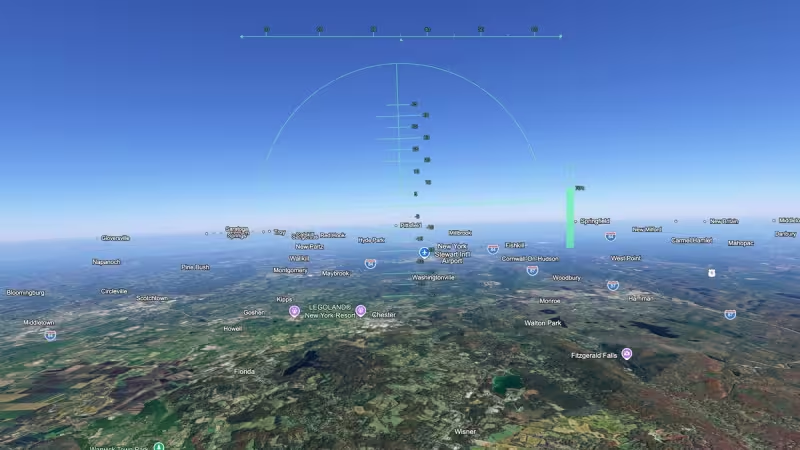
The Google Earth flight simulator lives inside the desktop Google Earth Pro application — not in the browser — and you can open it from the Tools menu or with a simple keyboard shortcut.
Open Google Earth Pro, choose Tools > Enter Flight Simulator, or press Ctrl+Alt+A on Windows (Cmd+Option+A on a Mac) and the program drops you into a basic but surprisingly usable flight environment. The simulator offers two aircraft profiles, a lightweight general-aviation plane and a military-style jet, and the controls combine mouse-look with keyboard input for throttle and attitude.

That short checklist is the story: the feature is available today to anyone who has Google Earth Pro on a desktop, it’s easy to reach, and it requires no additional download beyond the app itself. For readers who want a quick, visual way to fly over satellite imagery without installing a dedicated flight-sim package, the Google Earth flight simulator is the simplest option built into Google’s mapping software.
What gives the tool its value is immediacy. You’re flying over the same high-resolution imagery you use for placemarks and measurements, so you can launch into a view of a city, a landmark or an island in seconds. The two aircraft choices — a small SR-style single-engine plane for low-and-slow sightseeing and a faster jet for high-speed passes — let you pick between relaxed exploration and brisk transit. Controls are intentionally spare: use the mouse to change your view and basic keyboard commands to adjust throttle, pitch and roll.
That simplicity is also the limitation. The flight simulator in Google Earth Pro is not a professional-grade simulator. It lacks advanced flight models, detailed cockpit instrumentation and the fidelity that a dedicated title provides. The aircraft behave more like visualization tools than certified flight models: they respond to inputs in ways that feel intuitive for casual use but will not match the accuracy required for pilot training or competitive simming.


Another friction point is platform availability. The flight simulator is part of the desktop Google Earth Pro experience. The browser-based Google Earth and some mobile versions do not include the flight mode, so users who switch between devices can expect different feature sets. If the simulator is the reason you want this capability, install or open Google Earth Pro on a Windows or macOS desktop to be certain you have it.
Getting started is straightforward. Launch Google Earth Pro, pick a starting location or use the Find box to jump somewhere specific, then enter the simulator from the Tools menu or the keyboard shortcut. The interface includes on-screen prompts for basic controls; experiment first with altitude and airspeed before attempting tight turns. If you want a steadier view for photography or mapping, choose the lighter plane and reduce throttle to slow the ground speed.
Settings in Google Earth Pro let you tweak graphics and navigation behavior if the default feels too sharp or laggy on your machine. Lower terrain detail and shadow settings if performance stutters, or increase them for a more pleasing visual at the cost of speed. The simulator will run on most modern desktops that can handle Google Earth Pro, but older hardware may require conservative graphics settings.
For anyone who opens Google Earth looking for a quick way to “pilot” the globe, the flight simulator delivers an immediate payoff: it’s built in, it’s free with Google Earth Pro, and it turns satellite imagery into a navigable environment in moments. If you want realism and advanced avionics, this is not a replacement; if you want a fast, visual way to explore from the air, it’s one of the easiest tools available.
Try it now: open Google Earth Pro on your desktop, press Ctrl+Alt+A (or Cmd+Option+A on Mac), pick a plane, and fly. The feature will give you a practical glimpse of places from a pilot’s perspective without the setup and learning curve of a dedicated simulator — and it’s the fastest route from map to flight that Google currently includes in its desktop product.