




















ChromeOS Flex: A Robust Alternative for PCs Unable to Run Windows 11

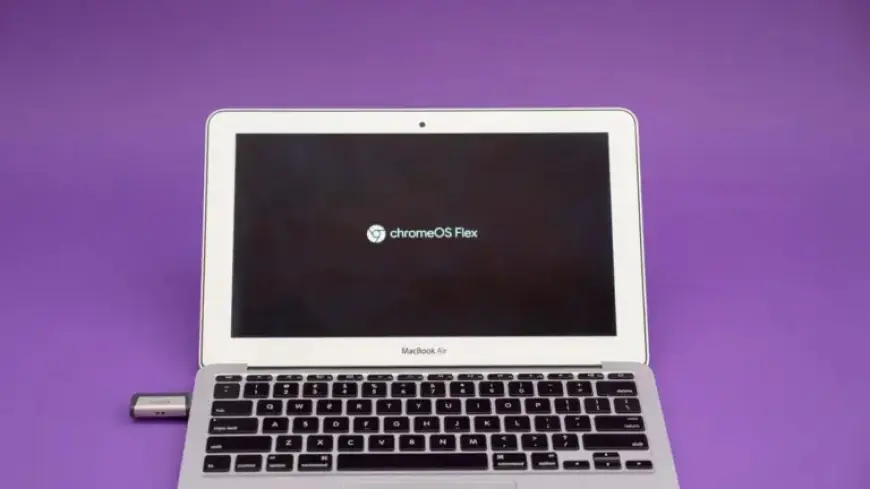
Google’s ChromeOS Flex emerges as a compelling option for users seeking alternatives to Windows 11 on older PCs. This operating system caters not only to Windows users but also to those with outdated Macs. Recently, Google partnered with Back Market to enhance access to ChromeOS Flex, offering USB kits that facilitate easy installation.
Why Choose ChromeOS Flex?
ChromeOS Flex is tailored for computers that can no longer run the latest operating systems effectively. This is an important consideration for the over 500 million users whose Windows 10 PCs are now unsupported.
Key Features of ChromeOS Flex
- Lightweight design, perfect for reviving older hardware.
- Free for personal use with no annual fees.
- Includes essential features like the Chrome browser, Family Link support, and Phone Hub connectivity.
- Does not support Google Play Store or Android apps.
Installation Process
Installing ChromeOS Flex is straightforward. Users can opt for either a trial run from a USB flash drive or a full installation on their hard drive.
Requirements for Installation
- A USB thumb drive or SD card (8GB or larger).
- A compatible computer running Chrome, Windows, or Linux.
- Full administrator access to BIOS settings on the target device.
- PC should be Intel or AMD x86-64-bit compatible, ideally from 2010 or newer.
- At least 4GB of RAM and 16GB of storage available.
Steps to Create the USB Installer
- Add the Chromebook Recovery Utility extension in Chrome.
- Launch the utility and select ‘ChromeOS Flex’ as the target model.
- Insert the USB flash drive and create the installer.
Booting from the USB Installer
To test or install ChromeOS Flex, insert the USB drive into the target laptop. Follow these steps:
- Turn off the laptop and insert the USB drive.
- Power on while pressing the appropriate boot key (check Google’s list for specific manufacturers).
- Select the USB drive from the boot options and press Enter.
Final Setup
Once booted, users will see a welcome screen. They can choose to run the OS directly from the USB or install it on the hard drive. The installation process takes around 20 minutes, depending on the device’s specifications.
Conclusion
With ChromeOS Flex, outdated laptops can become functional again, offering an efficient, user-friendly interface. Testing it out is low-risk, especially since it costs nothing and can rejuvenate an older device.