





















Create a Custom Greeting on Pixel’s Take a Message Feature

Google’s Pixel series has introduced a significant enhancement to its features with the Take a Message option. This feature, akin to a modern voicemail service, captures missed calls, providing real-time transcriptions that are easy to access later. Since its rollout in August 2023, it has garnered attention from users, but it had one limitation: a standard greeting for missed calls. Recently, Google has updated this function to allow users to create a custom greeting.
Create a Custom Greeting on Pixel’s Take a Message Feature
The introduction of customizable greetings for the Take a Message feature means users can now personalize their voicemail experience. Here’s how you can take advantage of this new capability.
Requirements to Access Custom Greetings
- A compatible Pixel phone: You will need a Pixel 6 or newer. The supported models include:
- Pixel 6/6 Pro
- Pixel 6a
- Pixel 7/7 Pro
- Pixel 7a
- Pixel Fold
- Pixel 8/8 Pro
- Pixel 8a
- Pixel 9/9 Pro/9 Pro XL/9 Pro Fold
- Pixel 9a
- Pixel 10/10 Pro/10 Pro XL/10 Pro Fold
- Pixel 10a
- The latest version of the Google Phone app, preferably version 217 of the beta or version 216.
Steps to Create Your Custom Greeting
If you have met the above requirements, follow these steps to set up your greeting:
- Open the Google Phone app.
- If prompted, tap on “Try it out” for Take a Message at the top of the screen. If you don’t see this option, access it through:
- Tap the three lines in the top-left corner.
- Select Settings.
- Choose Take a Message.
- Click on Manage greetings.
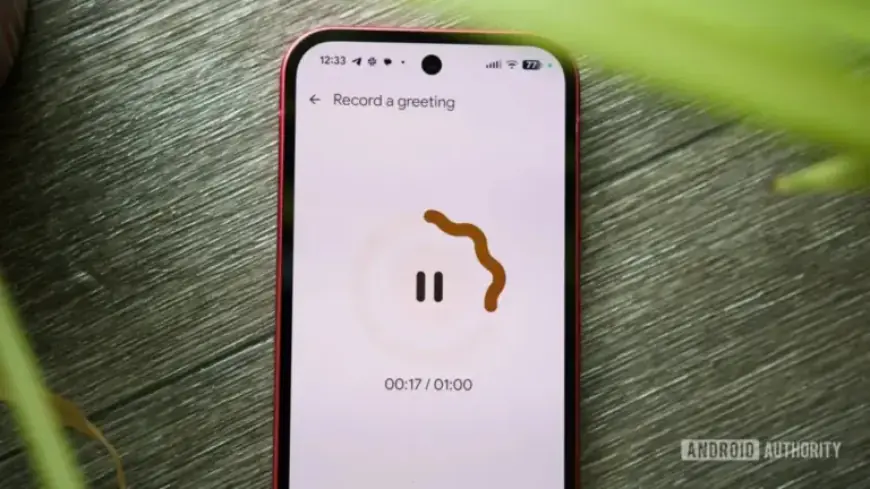
- On the Greetings page, you will see the default greeting at the top. To record your custom message, tap the circular microphone button.
Recording your greeting will start with a three-second countdown. Note that you can record up to one minute.
Additional Features and Options
- You can pause and resume your recording as needed by tapping the pause button.
- If you wish to start over, click on Restart. To save your recording, hit Save.
- Multiple custom greetings can be created and saved, allowing you to switch them at your convenience.
- Options to set a greeting as default, rename, or delete a custom greeting are accessible via the three dots next to each greeting.
The addition of custom greetings underlines an improvement in Google’s Take a Message feature, enhancing user experience and personalization. Enjoy crafting your unique voicemail announcement!