
























Enhance Productivity: Embrace Vertical Browser Tabs Today

Google’s Chrome browser has recently introduced significant features, enhancing user experience and productivity. Notably, these updates include a reading mode and vertical tabs, both long-awaited options that streamline browsing.
Embrace Vertical Browser Tabs for Enhanced Productivity
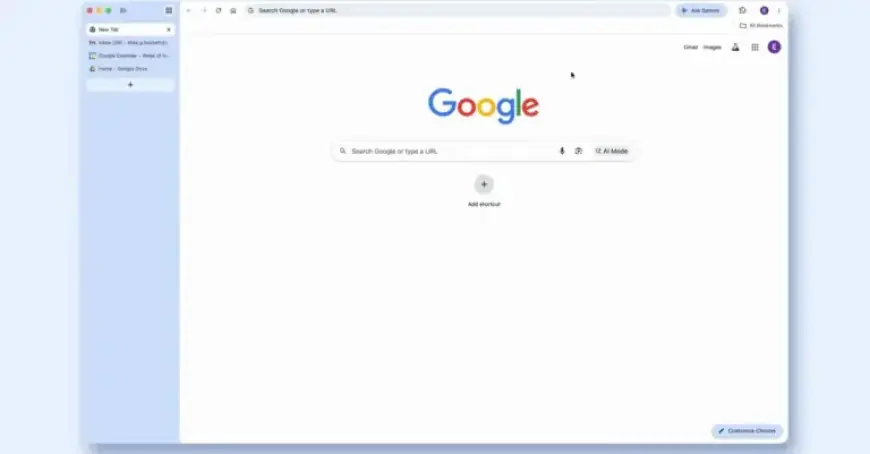
Vertical tabs are a game changer for managing multiple web pages. Instead of aligning tabs horizontally across the top, users can now position them in a sidebar. This feature is activated through a simple right-click on the tab bar, selecting “Show Tabs Vertically.” This design not only saves space but also improves navigation efficiency.
Revolutionary Design for Modern Browsing
Vertical tabs represent a thoughtful shift in browser design. Historically, tab placement at the top provided a distinct feel for each application. However, with advancements in screen technology leaning towards widescreen formats, this design decision warrants reevaluation.
- Widescreen dominance: Most modern displays are wider than they are tall, making vertical navigation more efficient.
- Improved visibility: Users can view more tab names at once, reducing confusion when managing multiple tabs.
- Streamlined organization: Vertical tabs facilitate better grouping and identification of web pages, enhancing workflow.
Functional Advantages of Vertical Tabs
Switching to vertical tabs offers numerous advantages:
- User-friendly navigation: The expanded viewing area allows for quick identification of tabs by title, rather than relying solely on favicons.
- Tab group management: Vertical organization makes it easier to create, expand, and collapse groups of related tabs.
- Consistency with modern software: Many applications now favor sidebars, aligning browser functionality with user interfaces designed for optimal navigation.
Transitioning to vertical tabs can significantly boost productivity. Users handling a large number of tabs, such as students or professionals, will find it easier to locate specific content. The integration of vertical tabs encourages a more organized approach to online tasks.
Getting Started with Vertical Tabs
To experience the benefits of vertical tabs, ensure your Chrome browser is up to date. Right-click the tab bar and select “Show Tabs Vertically” to activate the feature. This simple change can transform your browsing experience, making it more efficient and aligned with the way we use software today.
The introduction of vertical tabs in Chrome reflects an understanding of user needs in a digital world dominated by horizontal screen real estate. Embracing this new feature is a step toward improved productivity.