





















5 Small Windows 11 Tweaks to Restore a Windows 10 Feel

The transition from Windows 10 to Windows 11 has proven challenging for many users. While Windows 11 introduces modern features, it also departs from some familiar elements that long-time users cherished. Fortunately, a few simple tweaks can help recreate a Windows 10 feel within the newer operating system.
Five Tweaks to Restore a Windows 10 Feel on Windows 11
Here are five essential adjustments that can help customize your Windows 11 experience and bring back some characteristics of Windows 10.
1. Disable Microsoft Copilot
Many Windows users find the Microsoft Copilot feature unnecessary or intrusive. While there’s no straightforward option in the Settings app to disable it, you can take two routes depending on your Windows version.
- Using Local Group Policy Editor:
- Press Win + R to open the Run dialog, type gpedit.msc, and click OK.
- Navigate to User Configuration -> Administrative Templates -> Windows Components -> Windows Copilot.
- Double-click Turn off Windows Copilot, select Enabled, and click OK.
- Registry Editor Method:
- Press Win + R, type regedit, and click OK.
- Navigate to HKEY_CURRENT_USER -> Software -> Policies -> Microsoft -> Windows.
- Right-click an empty space in the right pane, select New → DWORD (32-bit) Value, and name it TurnOffWindowsCopilot.
- Set its value to 1 and click OK, then restart your computer.
2. Use the Classic Windows 10 Wallpaper
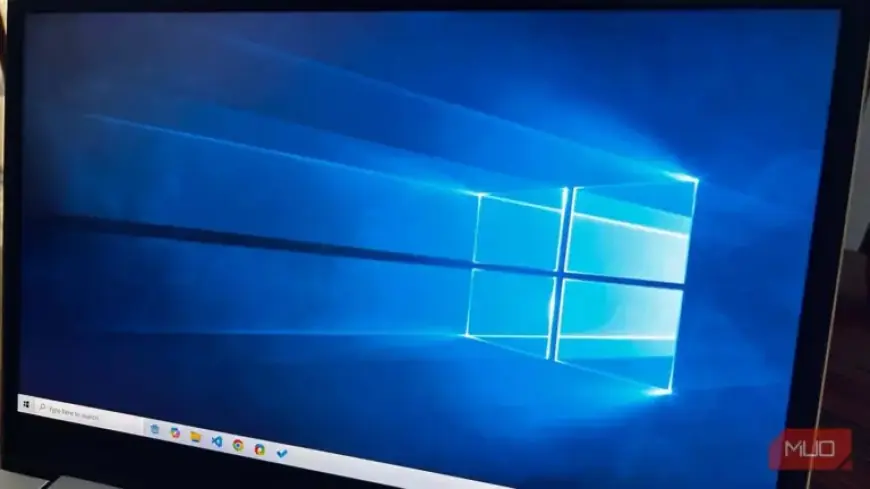
The iconic “Hero” wallpaper of Windows 10 can evoke a sense of nostalgia. You can easily download this background from reliable sources like Wallpapers Wide. Here’s how to set it:
- Press Win + I to open Settings.
- Go to Personalization -> Background and click on the Browse photos button.
- Locate the downloaded wallpaper, select it, and click Choose picture.
3. Restore the Classic Context Menu
Windows 11 features a streamlined context menu that may frustrate users accustomed to the previous version. You can revert to the classic context menu by editing the registry:
- Open Terminal (Admin) from the Power Menu (Win + X).
- Run the following command:
reg.exe add "HKCUSoftwareClassesCLSID{86ca1aa0-34aa-4e8b-a509-50c905bae2a2}InprocServer32" /f /ve
If you wish to revert to the default Windows 11 context menu later, use:
reg.exe delete "HKCUSoftwareClassesCLSID{86ca1aa0-34aa-4e8b-a509-50c905bae2a2}" /f4. Move the Taskbar to the Left
The centered taskbar in Windows 11 can disrupt familiar navigation patterns. To move it back to the left, follow these steps:
- Press Win + I to open Settings.
- Go to Personalization -> Taskbar.
- In the Taskbar behaviors section, set Taskbar alignment to Left.
5. Use Explorer Patcher to Customize the Start Menu
If you miss the Windows 10 Start menu, consider using the Explorer Patcher, an open-source tool. After installation, perform these actions:
- Right-click the taskbar and select Properties.
- Choose Start Menu from the left menu.
- Set Start menu style to Windows 10 and click Restart File Explorer for changes to apply.
These tweaks will help smooth the transition to Windows 11 while allowing long-time users to maintain a sense of familiarity.
Concluding Thoughts
While Windows 11 offers modern advancements, these adjustments can help restore the comfort of Windows 10. Each user can create a personalized experience that blends the old with the new in a way that feels right for them.