
























Explore Google Chrome Vertical Tabs: Features and Usage Guide (Gallery)

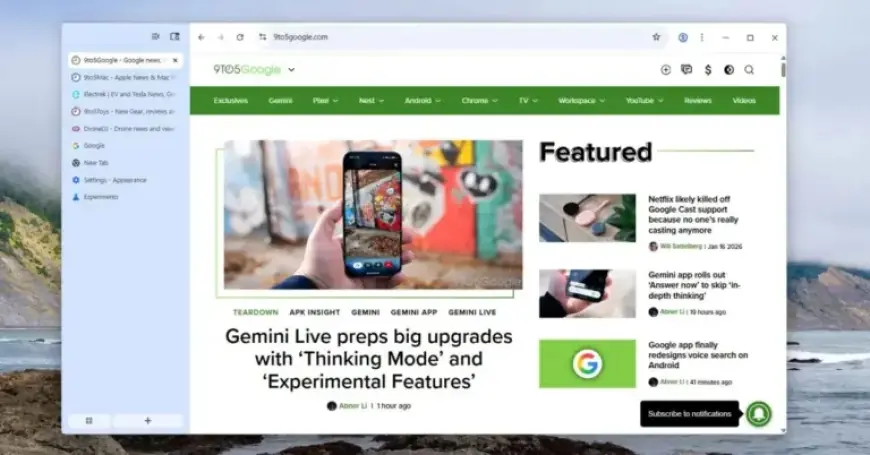
Google Chrome is testing a new vertical tabs feature, allowing users to manage multiple tabs more efficiently. This shift to a vertical layout addresses the common challenge of navigating numerous browser tabs simultaneously.
Vertical Tabs Feature in Chrome
The vertical tabs are designed to appear in a sidebar on the left side of the browser. This layout displays the tab icons, accompanying names, and a close button for convenience. Users can easily toggle between an expanded view with detailed information or a condensed view that shows icons only.
Key Features of Vertical Tabs
- Sidebar layout to view tab icons and names.
- Search function to find specific tabs quickly.
- Option to create tab groups for organization.
- Expandable and collapsible sidebar.
Enabling Vertical Tabs in Google Chrome
To access this experimental feature, users must install Google Chrome version 145 or higher from the Beta release track. This version is separate from the stable Chrome installation and can be downloaded from Google’s official website.
Steps to Enable Vertical Tabs
- Install Chrome v145 from the Beta channel.
- Open Chrome and visit the flags page by entering chrome://flags/#vertical-tabs.
- Set the vertical tabs option to “Enabled.”
- Relaunch the browser to apply the changes.
- Navigate to Settings > Appearance and change the “Tab strip position” to “Side.”
The stable version of Google Chrome v145 is anticipated to be released in February. However, users should note that the vertical tab feature may not be activated by default.
Compatibility and Accessibility
This vertical tabs feature is available across various operating systems, including Windows, macOS, Linux, and ChromeOS. As browser tab usage continues to increase, this enhancement aims to improve user experience significantly.