

























PowerShell Script Transforms Every Windows Installation

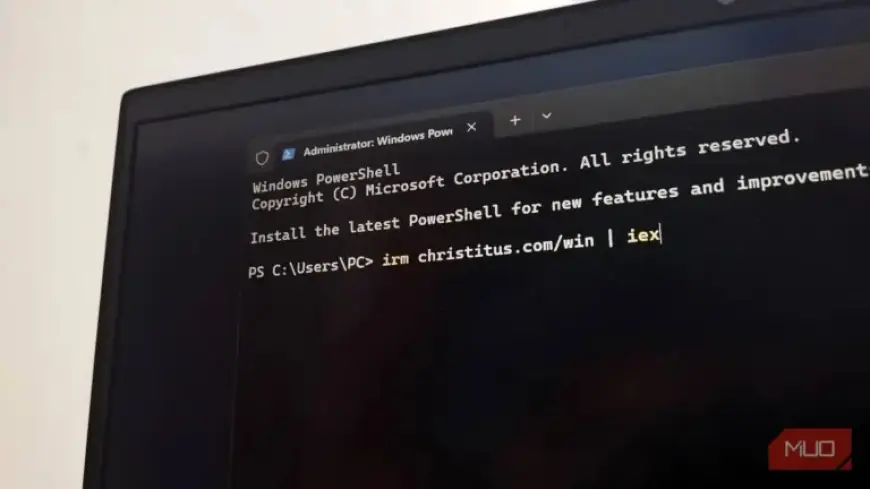
Setting up a new Windows installation often involves tedious steps like removing bloatware and adjusting privacy settings. For many users, this process can feel overwhelming, especially when repeated across multiple devices. Fortunately, the WinUtil PowerShell script, developed by Chris Titus Tech, streamlines these tasks into a single, user-friendly interface.
What is WinUtil?
WinUtil is a free, open-source utility built on PowerShell, available on GitHub. It simplifies the debloating of Windows, optimizes system settings, and allows for bulk installation of essential applications. Users appreciate its capability to enhance performance and privacy without needing to manually alter registry keys or settings.
Why You Should Use WinUtil
- Consolidates multiple time-consuming tasks
- Compatible with both Windows 10 and 11
- Open-source, allowing users to review scripts before execution
- Regularly updated to keep pace with Windows changes
Launching WinUtil is straightforward. Begin by searching for PowerShell in the Windows search bar. Right-click on it and select “Run as administrator.” Then, input the command: irm christitus.com/win | iex. This command opens a graphical interface that allows users to access various functions easily.
Debloating Windows Made Simple
The Tweaks tab in WinUtil is particularly valuable, offering optimizations in two categories: Essential Tweaks and Advanced Tweaks. You can select individual tweaks or apply preset options like Standard, Minimal, or Clear.
Key Features of the Tweaks Tab
- Essential Tweaks include disabling telemetry, activity history, and deleting temporary files.
- Advanced Tweaks require caution, containing options that may disrupt normal workflows.
- Customization options enhance the user experience further.
One feature that stands out is the Undo Selected Tweaks button, which allows users to revert individual changes without restoring the entire system. This feature encourages experimentation and reduces the intimidation factor of modifying system settings.
Privacy and Performance Enhancements
Windows automatically collects various types of data, which can hinder performance. WinUtil enables users to disable telemetry, location tracking, and other background processes easily. This can save hours of manually navigating through settings menus.
- Set services to manual to free up system resources.
- Run Disk Cleanup to optimize storage.
- Disable GameDVR for a smoother experience, especially on older hardware.
WinUtil also features a dedicated Updates tab, where users can control how Windows manages updates. Options include typical settings, security-centric settings that delay feature updates, and the ability to disable updates entirely, though the latter comes with risks.
Managing System Configurations
The Config tab serves as a gateway to legacy Windows panels that are often buried within the newer settings interface. Users can quickly access features like the Control Panel and network settings, making troubleshooting more efficient.
Things to Remember When Using WinUtil
Although WinUtil is powerful, caution is advised. Users should create a restore point before making any changes. This built-in feature ensures that any mistakes can be easily reverted.
Since not every tweak will suit every setup, familiarity with your specific needs is essential. When unsure, start with the Standard preset. Advanced options should be approached with care as they can significantly alter system behavior.
With the introduction of WinUtil, transforming every Windows installation has never been easier. This utility not only saves time but also empowers users to take control of their system configurations effectively.