























Enhance Windows 11 Speed: 3 Simple Debloating Techniques

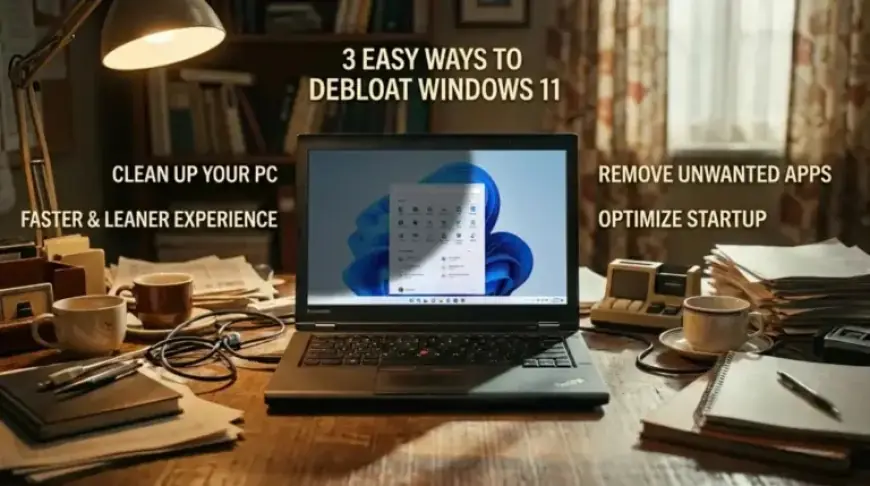
Windows 11 can often feel sluggish and cluttered, primarily due to the abundance of preinstalled software known as bloatware. However, there are simple techniques to enhance Windows 11 speed by decluttering the system in just a few minutes. This article explores three effective methods to debloat Windows 11 and improve overall performance.
Understanding Bloatware in Windows 11
Bloatware refers to unnecessary applications and background services that come bundled with Windows 11. These can consume valuable storage resources and slow down your device. Common examples include feedback tools, trial applications, and various default programs.
Techniques to Debloat Windows 11
There are at least three methods to effectively debloat Windows 11, which include built-in installation options and third-party tools.
1. Debloating During Windows 11 Setup
The first technique involves decluttering during the operating system installation. Follow these steps:
- Connect the Windows 11 USB bootable media and start your device.
- Select your language when prompted and click “Next.”
- Choose “Install Windows 11” and check the option indicating you agree to delete existing files and apps.
- Proceed without entering a product key if your computer doesn’t have one activated.
- Select Windows 11 edition and confirm acceptance of license terms.
- Choose the installation drive and click “Install.”
This method will allow you to set up Windows 11 without most bloatware, offering a cleaner experience.
2. Debloating via Group Policy
Another approach involves using Group Policy to create new user accounts without bloatware. Here’s how:
- Open the Start menu and search for “gpedit” to access the Local Group Policy Editor.
- Navigate to Computer Configuration > Administrative Templates > Windows Components > App Package Deployment.
- Edit the “Remove Default Microsoft Store packages from the system” policy.
- Enable the option and select unnecessary applications to uninstall.
- Apply the changes and exit.
This configuration will ensure that new accounts are created with minimal clutter.
3. Using FlyOOBE Tool
For an advanced debloating option, consider using the FlyOOBE tool, which can remove additional bloatware. To use FlyOOBE:
- Download the latest version from its GitHub page.
- Extract the zip file and launch FlyOOBE.exe.
- Select your debloating level: “Balanced,” “Full Microsoft Experience,” “Minimal Windows,” or “Community.”
- Check the apps you want to remove and click “Remove Selected Apps.”
This method effectively uninstalls applications that occupy unnecessary space on your system.
Conclusion: Enhancing Your Windows 11 Experience
Implementing these three simple debloating techniques can significantly enhance the speed and responsiveness of Windows 11. By removing bloatware and unnecessary applications, users can enjoy a more streamlined and efficient operating system.
FAQs about Debloating Windows 11
- What is bloatware? Bloatware consists of preinstalled applications that add little value and occupy storage space.
- Will debloating remove essential apps? Standard methods typically preserve core applications like Microsoft Edge.
- Can I debloat without reinstalling Windows? Yes, through Group Policy and FlyOOBE, you can debloat without a full reinstall.
- Is FlyOOBE safe? FlyOOBE is widely used but always download from official sources to avoid issues.
- Will debloating improve performance? Yes, it reduces system clutter, freeing up resources and enhancing speed.