

























Windows 11 Update 25H2 Introduces Android Resume Feature, Offers .msu Download Links

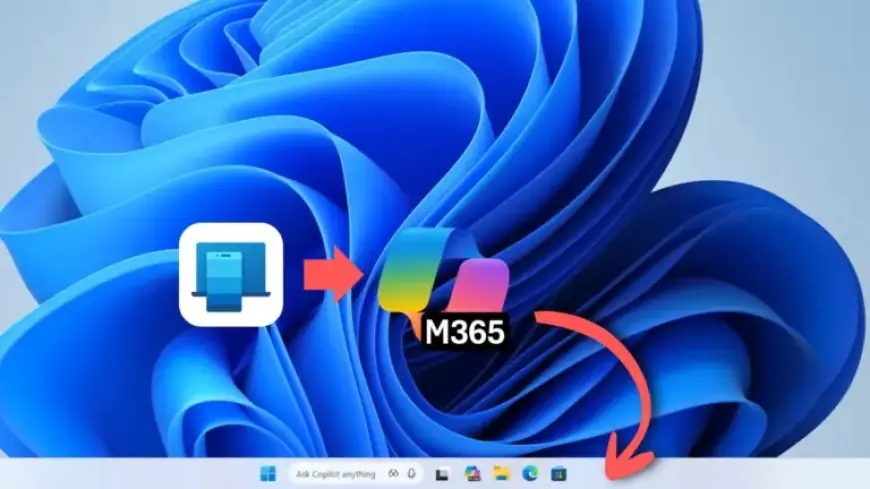
Microsoft has rolled out Windows 11 update KB5074105, which falls under version 25H2. This feature update introduces several interesting enhancements, including the ability to enable or disable Smart App Control without needing to reinstall the operating system.
Key Features of Windows 11 Update 25H2
The update is available as an optional download. To access it, users must manually check for updates through Windows Update. Automatic downloads won’t occur unless users have enabled the option for immediate updates.
Download Options
- 64-bit version: Build 26200.7705, Size: 4434.4 MB
- ARM-64 version: Build 26200.7705, Size: 4137.9 MB
- Previous version (24H2): Build 26100.7705, Size: 4434.4 MB (x64) and 4137.9 MB (arm64)
The offline installers (.msu) are also available through the Microsoft Update Catalog for users experiencing issues with the standard update procedure.
New Features and Improvements
- Cross Device Resume Feature: This update incorporates an Android-like resume feature that allows users to continue tasks across devices. Users can now pick up on documents or media from their Android devices seamlessly on their Windows 11 PC.
- Smart App Control: Users can now toggle Smart App Control on and off without needing a full OS reinstall. This feature, designed to enhance security, previously required a complete reinstallation to change its status.
- Windows MIDI Services: Improved support for MIDI devices promises better communication and speed for music applications.
- Device Card in Settings: A new card in the Settings home page offers quick access to device specifications and usage details.
- Enhanced Windows Hello: Peripheral fingerprint sensors are now compatible with Windows Hello Enhanced Sign-in Security, extending security features to external devices.
- Bug Fixes: The update addresses multiple bugs, including issues that led to Windows unresponsiveness and problems with File Explorer customization.
How to Download the Update
Users can initiate the download by navigating to Settings > Update & Security > Windows Update and selecting “Check for updates.” For offline installations, users can download the relevant .msu files from the Microsoft Update Catalog.
Performance and Stability
The download process for Build 26200.7705 may take about 15 minutes on a 200 Mbps connection. Users will need to restart their PCs to complete the installation. Notably, if any issues arise post-installation, the optional update can be uninstalled at any time.
As of now, the feedback on this update remains positive. Microsoft is continuously working to enhance user experience and stability with each release.