

























Optimize Apple TV: Adjust 3 HDMI Settings for Enhanced Picture Quality

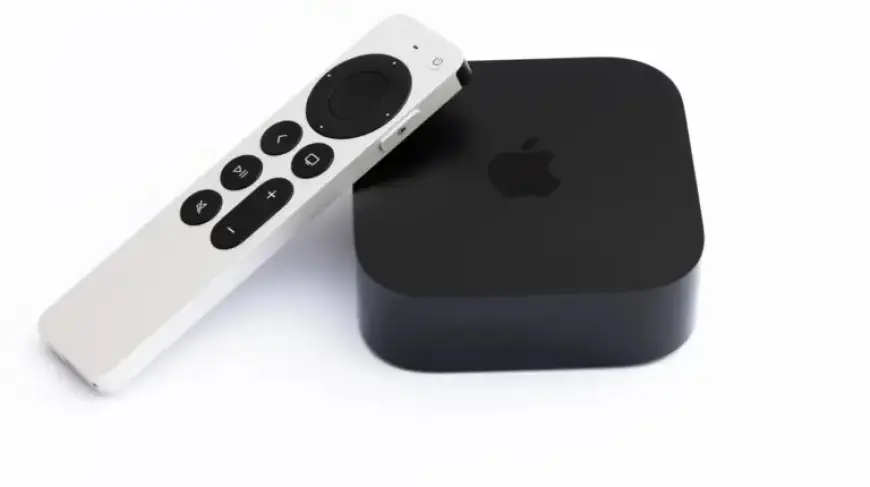
The Apple TV has transformed how viewers enjoy television, whether they have the latest model or an older version. By customizing specific HDMI settings, users can significantly enhance their viewing experience, making it a valuable investment for any home entertainment setup.
Optimize Apple TV: Adjust 3 HDMI Settings for Enhanced Picture Quality
Here are three key HDMI settings to consider when optimizing picture quality on your Apple TV.
1. Check the HDMI Connection
Before modifying any settings, ensure your HDMI cable is in good condition. Apple TV includes a diagnostic tool called “Check HDMI Connection” in its settings. This feature tests the stability of your HDMI connection, identifying any potential issues that may affect picture quality.
- Connect your Apple TV to the TV using a high-quality HDMI cable.
- The tool sends a high-bandwidth signal to check for errors.
- Address any detected issues by adjusting the settings as recommended.
2. Tweak the HDMI Output
The Apple TV 4K (2022) supports various color space formats. Adjusting the HDMI output can lead to improved visuals:
- YCbCr: This is the optimal setting for most smart TVs, allowing efficient color data transfer with minimal conversion.
- RGB High: While offering full-range RGB, this format is better suited for computer monitors and may compromise contrast on a TV.
- RGB Low: Matches traditional video levels but is not the most compatible choice for TVs.
For best results, it is advisable to stick with YCbCr.
3. Adjust the Chroma Setting
If you own a new Apple TV 4K and a compatible 4K smart TV, visit the Chroma settings:
- 4:4:4: Provides superior color detail, enhancing picture quality and clarity, especially for text.
- 4:2:0: The standard for most video content, ensuring adequate quality without overwhelming older TVs.
Choose the appropriate format based on your TV’s capabilities for the best viewing experience.
Match Content Settings
Another essential setting is Match Content, which ensures your Apple TV displays content in the format it was mastered for. Ensure both Match Dynamic Range and Match Frame Rate are turned on:
- Enhances compatibility between your Apple TV and television.
- May cause a brief black screen while resyncing, but newer models enable Quick Media Switching to reduce this issue.
Turning off these features is only advisable if your setup frequently faces instability. Otherwise, you will likely enjoy enhanced picture quality.
By adjusting these HDMI settings, you will optimize your Apple TV, ensuring a superior viewing experience for movies and shows. Stay updated with other tips at Filmogaz.com for maximizing your entertainment setup.