


















Resolve EA SPORTS FC 26 Controller Issues on PC

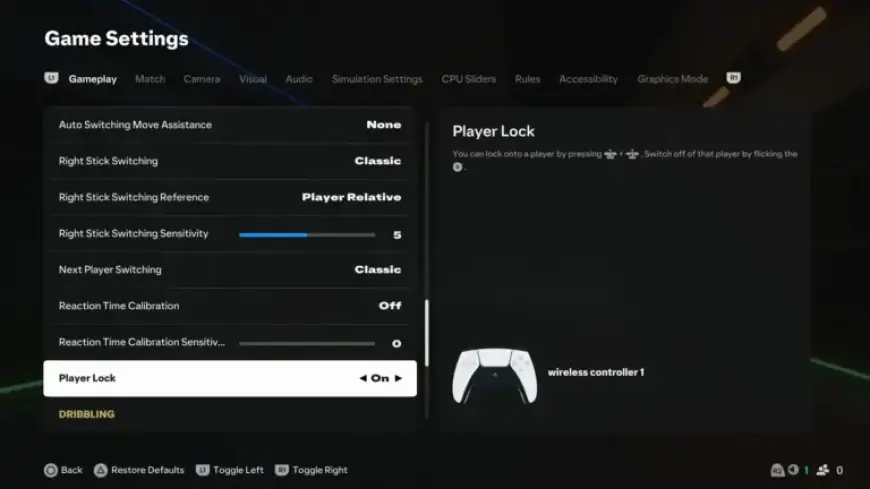
EA SPORTS FC 26 players on PC often encounter controller issues that disrupt gameplay. These problems can manifest as missed inputs, delayed responses, or unexpected switching back to keyboard and mouse controls despite the controller being connected. This guide provides essential fixes to resolve these controller issues.
Common Causes of Controller Issues
Many of the controller problems stem from conflicts among various input layers, such as:
- Steam Input
- EA Overlay
- Discord/Xbox Game Bar
- DS4Windows/reWASD
Additionally, unstable frame rates can adversely affect input detection. If your controller disconnects in Windows, you should check your USB or Bluetooth settings first. Otherwise, proceed with the following steps.
Steps to Resolve EA SPORTS FC 26 Controller Issues
1. Verify Game Files
Corrupted files can hinder input functionality. To verify and repair your game files:
- Steam: Navigate to Library, right-click EA SPORTS FC 26, and select Properties. Click on Installed Files, then Verify integrity of game files.
- EA App: Open the EA app, go to Library, select EA SPORTS FC 26, and click Manage. Choose Repair.
2. Lock Frame Rate to 60 FPS
Controller responsiveness can suffer with unstable frame rates. Set your FPS to 60 for optimal performance:
- Open EA SPORTS FC 26 and go to Settings.
- Select Display and set Frame Rate Limit to 60 FPS. Restart the game after applying changes.
3. Disable Steam Input (Steam Version)
If you’re using the Steam version, disabling Steam Input can help:
- In Steam, go to Library and right-click on EA SPORTS FC 26.
- Open the Controller tab and set it to Disable Steam Input.
- Restart the game to test changes. If issues persist, re-enable Steam Input and disable other overlays instead.
4. Disable Overlays
Game overlays can interfere with input detection. To enhance performance, disable overlays like Steam Overlay, EA Overlay, and others. Consult guides specific to each platform for instructions.
5. Close DS4Windows and Other Virtual Tools
DS4Windows and similar applications can create virtual controllers that might confuse the game:
- Shut down DS4Windows and any other virtual controller tools from the system tray.
- Restart EA SPORTS FC 26 and test the controller.
6. USB/Bluetooth Troubleshooting
If your controller disconnects in Windows, focus on USB or Bluetooth stability:
- Change the USB port, utilizing a direct connection to the motherboard rather than hubs.
- Try switching between Bluetooth and USB to check for wireless issues.
- Ensure only one active controller is paired in Bluetooth settings.
By following these steps, players can effectively resolve EA SPORTS FC 26 controller issues on PC, ensuring a smoother gaming experience.