






















Halo Silver Anniversary Content Creator Guide Released

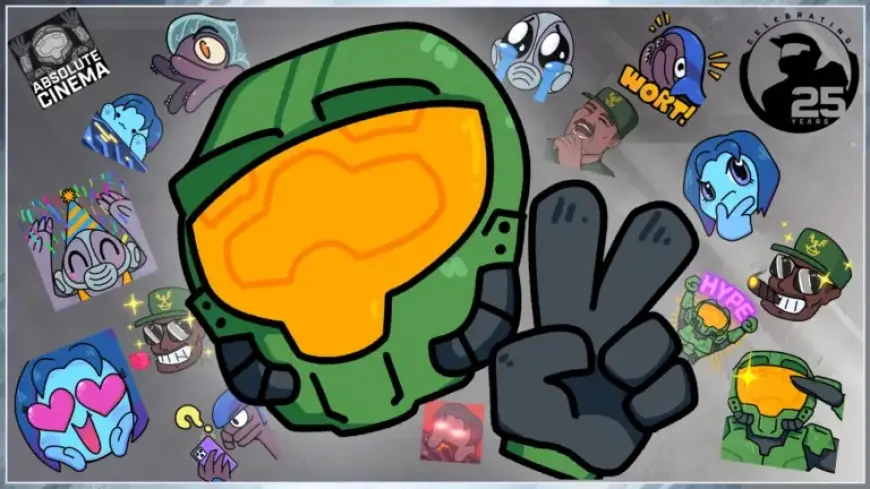
The Halo franchise is celebrating its 25th anniversary, and to honor this milestone, a special Silver Anniversary Content Creator Bundle has been released. This bundle is designed to support streamers, enabling them to enhance their channels with unique Halo-themed graphics and features.
Key Features of the Silver Anniversary Content Creator Bundle
This bundle includes a variety of essential items for both new and experienced streamers. Here’s what you can expect:
- Custom alerts for subscribers, followers, donations, raids, and bits.
- Fifteen unique Halo-themed emotes.
- Graphics for stream lobbies, webcam overlays, profile borders, and more.
- High-fidelity audio clips to complement your alerts.
- Silver Anniversary-themed transition animations for scene changes.
Getting Started with the Bundle
To utilize the Silver Anniversary Content Creator Bundle, follow these simple requirements:
- A PC or laptop capable of running streaming software.
- Streaming software such as OBS Studio or Streamlabs.
- If streaming from a console, a video capture card is needed.
Setting up a streaming service like Streamlabs or StreamElements will also enhance the experience by providing animated alerts for interactions like new subscriptions and donations.
Steps for Setting Up Your Stream
Capturing Gameplay
Start by creating a “Scene” in OBS Studio. This serves as a visual template for organizing your stream elements. Follow these steps:
- Click the plus icon in the “Scenes” panel to create a new scene.
- Name your scene appropriately, like “Gameplay.”
- Add a source. Choose between “Display Capture” if you are capturing on the same PC, or “Video Capture Device” for a console setup.
Setting Up Your Webcam
Adding a webcam enhances engagement with your audience. Here’s how to set it up:
- Add your webcam as a new source in OBS.
- Adjust the position and size of your webcam feed within the scene.
- Add a webcam overlay from the Content Creator Bundle to provide a polished look.
Building Custom Alerts
Custom alerts add excitement to your streams. To configure them:
- Log into your Streamlabs account and navigate to “Alert Box.”
- Select “Add Variation” to create a new alert.
- Upload the appropriate files from the Creator Bundle and configure their appearance and duration.
Use Halo-themed sound effects and adjust the alert fonts and colors to suit your style.
Utilizing Chat and Lobby Scenes
Create a lobby scene complete with a chat feed by following these guidelines:
- Insert a webcam output.
- Upload chat overlay graphics.
- Configure chat settings in your Streamlabs account, copy the chat URL, and add it as a browser source in OBS.
Enhancements and Transitions
For a professional touch during scene changes, use the transition included in the Silver Anniversary Bundle. Here’s how:
- Access the “Scene Transitions” panel in OBS Studio.
- Select the “Stinger” option and upload the transition video.
- Adjust the settings for smooth transitions between scenes.
This will elevate the overall quality of your streaming presentation.
Join the Celebration
As you set up your stream with the Silver Anniversary Content Creator Bundle, don’t forget to participate in the Halo community. Share your experiences, vote in polls, and contribute to the rich legacy of the Halo franchise. Whether you are a seasoned veteran or a newcomer, there’s a place for you in the Halo community. Celebrate 25 years of Halo together!