
























12 Must-Know Tips for Ultrawide Monitor Enthusiasts

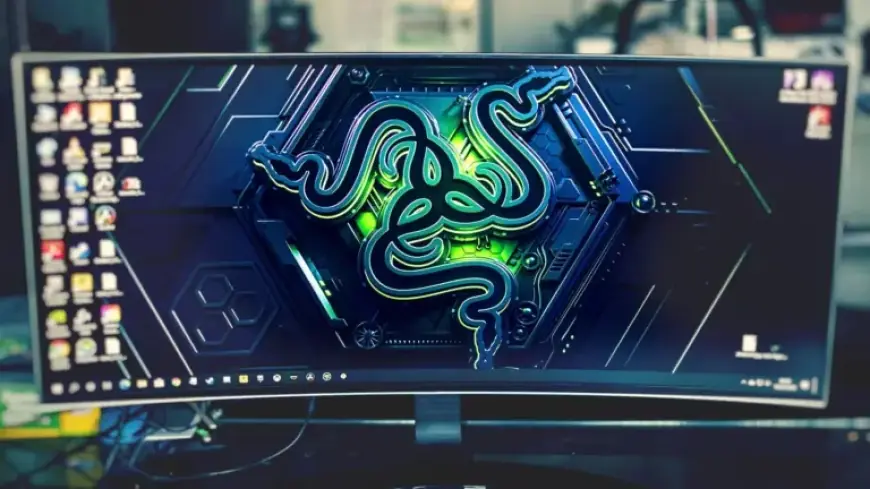
Ultrawide monitors have rapidly gained popularity among users who seek enhanced immersion and productivity. These displays, typically offering resolutions of 21:9 or 32:9, are particularly favored by gamers and professionals requiring extensive screen real estate. By adopting the right strategies, users can maximize their experience with ultrawide monitors. Here are essential tips for ultrawide monitor enthusiasts.
1. Utilize Snap Assist and Auto-Window Tiling
Windows 10’s Snap Assist feature allows users to quickly organize open applications. This functionality is beneficial on ultrawide monitors, where users can snap windows to either side and choose what appears in the adjacent space. For macOS, auto-window tiling serves a similar purpose, enabling users to efficiently manage window positions.
2. Ensure Your GPU Supports Ultrawide Resolutions
Before diving into ultrawide gaming, confirm that your graphics processing unit (GPU) can handle 21:9 or 32:9 resolutions. While 1080p gaming may work, higher resolutions like 1440p require more capable graphics cards. The investment is worthwhile for the immersive experience ultrawide monitors provide.
3. Explore Custom Layouts with FancyZones and Magnet
For Windows users, FancyZones from PowerToys is ideal for creating customized window layouts. It gives greater control over how apps are arranged compared to Snap Assist alone. Meanwhile, macOS users can benefit from Magnet, which offers versatile window management options, enhancing productivity on ultrawide displays.
4. Set the Refresh Rate to Maximum
To enjoy the full potential of an ultrawide monitor, ensure the refresh rate is set to the highest value. Check your display settings and use tools like the Nvidia Control Panel to avoid lag and screen tearing, ensuring a smooth viewing experience.
5. Choose Games That Support Ultrawide Formats
Not all games are optimized for ultrawide resolutions. Verify compatibility before playing to avoid distracting black bars on the screen. Resources like the PC Gaming Wiki offer lists of games that support these formats, enhancing your gaming experience.
6. Use Hot Corners on macOS
Hot Corners can simplify navigation on macOS with an ultrawide monitor. Configure this feature in System Settings to access shortcuts by moving the pointer to the screen corners, enhancing accessibility and productivity.
7. Prevent Screen Burn-in on OLED Displays
Many premium ultrawide monitors utilize OLED technology. While these displays produce stunning visuals, they are susceptible to screen burn-in. Adjust brightness settings, use screensavers, and turn off the monitor when not in use to maintain display quality.
8. Optimize Workspace with Monitor Mounts
Consider a sturdy monitor mount to improve desk space for ultrawide displays. This setup is particularly beneficial for height-adjustable desks, allowing users to maintain ergonomic positioning while saving valuable desk space.
9. Improve Streaming with UltraWideo Extension
Ultrawide monitors often struggle with standard streaming content due to letterboxing. The UltraWideo extension enhances the viewing experience by eliminating black bars across various platforms, making your streaming sessions more enjoyable.
10. Prioritize Cable Management
Manage HDMI, USB-C, and DisplayPort cables effectively to avoid clutter. A well-organized workspace enhances productivity and reduces distractions when using ultrawide monitors.
11. Utilize Picture-in-Picture and Picture-by-Picture Modes
Many ultrawide monitors support Picture-in-Picture (PiP) and Picture-by-Picture (PbP) modes. These features allow users to view input from multiple sources simultaneously, greatly enhancing multitasking efficiency.
12. Use BetterDisplay for Optimal Mac Resolutions
Mac users may face challenges with ultrawide monitors due to resolution support. The BetterDisplay tool allows for custom resolutions, ensuring optimal display performance and clarity based on user preferences.
These strategies unlock the full potential of ultrawide monitors, making them invaluable tools for both gaming and professional work. By implementing these tips, enthusiasts can enhance their overall experience on these sophisticated displays.