
























Boost PC Speed: Remove These Windows Startup Apps

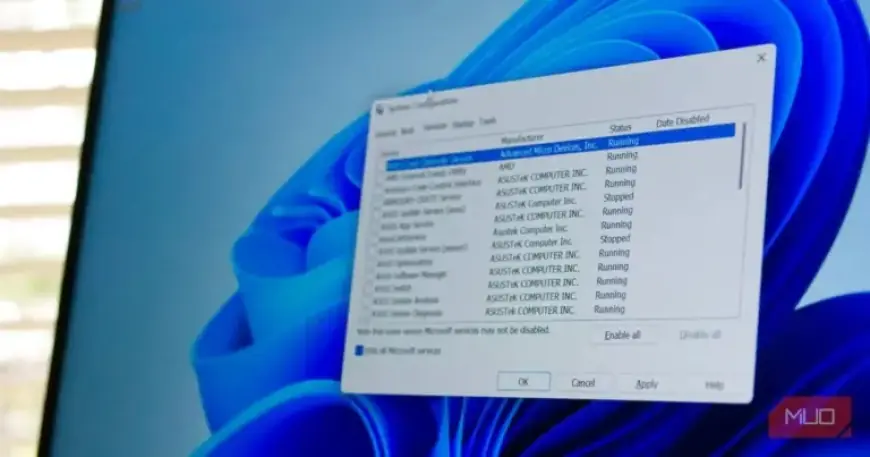
The speed at which your PC boots significantly impacts your overall productivity. Disabling unnecessary startup applications can help streamline the boot process, allowing you to access your system quicker. Many users may not realize how much time they waste waiting for apps to load when starting their computers. Understanding which startup apps to keep and which to remove is essential for enhancing your PC’s performance.
Understanding Windows Startup Apps
Startup apps are applications that automatically run when you log into your Windows system. Over time, as you install new software, your computer may accumulate numerous applications set to launch at startup. While some of these apps can be beneficial, many are unnecessary and can delay your system readiness.
Categories of Startup Apps to Consider Removing
Here are the major categories of applications you should consider disabling from startup to improve your boot speed:
- Manufacturer Bloatware: Many pre-built PCs come with unnecessary manufacturer applications that can duplicate Windows functions. Remove redundant apps like trial versions of security software and other items that serve no purpose.
- Communication Tools: Apps like Discord and Zoom may set themselves to run at startup. If you don’t use them regularly, consider disabling them to reduce distractions from notifications when booting up.
- Gaming Clients: For gamers, applications like Steam and Epic Games can slow down startup times. Only enable them to run at startup if you play games frequently enough to justify the delays.
- Multiple Browsers: Running all installed browsers at startup can waste resources. Limit this to your primary browser to optimize performance.
- Infrequently Used Applications: If certain programs are seldom used, such as remote access tools or media players, they don’t need to launch automatically. Schedule these to run only when required.
Essential Startup Applications
While it’s important to disable unnecessary apps, some programs should always run at startup. Consider keeping the following types enabled:
- Security Software: Your antivirus or VPN should be active to protect your system from threats.
- Backup Tools: These should operate in the background to ensure your data is secure without needing manual intervention.
- Cloud Storage Syncing Apps: Keep apps like Google Drive running to ensure that changes sync without missed updates.
- Essential Utilities: Applications that enhance your productivity, like screenshot tools or clipboard managers, should be set to launch automatically.
Conclusion
Cleaning up your startup applications can significantly enhance your PC’s boot speed. Regularly assess which apps you really use and need to run at startup. If in doubt, disable an app and observe how often you manually open it. Streamlining startup processes will lead to a more efficient computing experience, minimizing delays each time you start your device.