






















Discover These 5 Essential Hidden Features for Every Steam Deck User

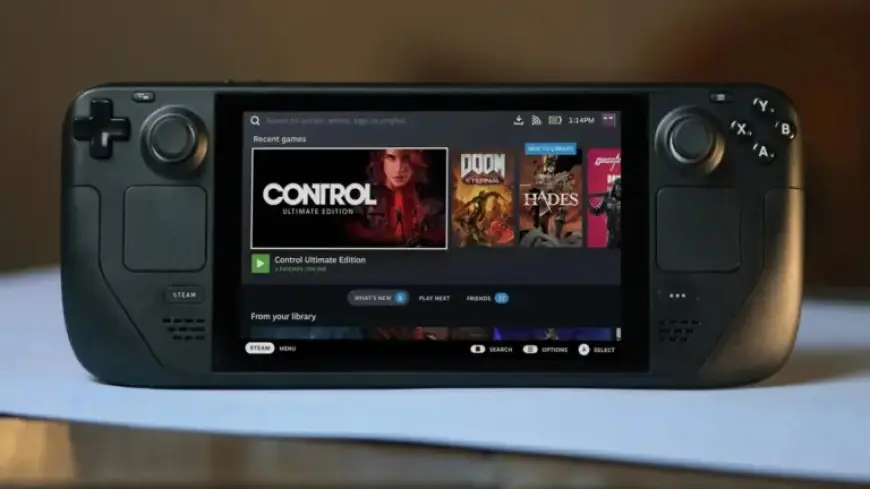
Valve’s Steam Deck has established itself as a leading option among portable PC gaming devices. This versatile gadget allows users to access their Steam library on the go or connect to larger displays. Beyond its core functionalities, the Steam Deck offers numerous hidden features that enhance user experience, security, and convenience.
Discover These 5 Essential Hidden Features for Every Steam Deck User
1. Install Games in Desktop Mode to Protect Your Screen
The Steam Deck allows downloads directly from your virtual Steam library. However, prolonged screen usage during downloads can risk OLED screen burn-in. To prevent this, switch to desktop mode by:
- Pressing the Steam button.
- Selecting Power.
- Choosing Switch to Desktop.
When in desktop mode, starting a download will let the screen turn off automatically while the game installs.
2. Use the Trackpad as a Mouse
Older PC games may not always be optimized for controller use. The Steam Deck has a built-in feature that allows users to utilize the right trackpad as a mouse. To activate:
- Hold down the Steam button.
- Use the right trackpad to navigate like a mouse cursor.
This feature works with any game, enabling smoother access to menus.
3. Quickly Adjust Screen Brightness
The Steam Deck lacks physical brightness controls, but users can still adjust brightness quickly. To do so:
- Hold down the Steam button.
- Move the left control stick up or down to adjust brightness.
Alternatively, users can access the quick settings through the three-dot button, but the method above is faster.
4. Connect Your Phone via Bluetooth
For gamers who enjoy playing with background audio, connecting a smartphone to the Steam Deck is simple. To connect:
- Navigate to the Bluetooth menu.
- Select Show all devices and pair your phone.
This allows users to play audio or video content from their phone through the Steam Deck’s speakers or headphones, preserving system performance during gameplay.
5. Set Up a Lock Screen for Security
For those who travel with the Steam Deck, a lock screen is a smart security measure. To enable it, go to:
- Settings.
- Select Security and find the Lock Screen option.
Users can choose to enter a numeric code or a sequence of button inputs to secure the device upon waking it from sleep mode.
By utilizing these hidden features, every Steam Deck user can enhance their gaming experience, protect their device, and maximize functionality. Whether installing games or ensuring privacy, these tips are essential for getting the most out of your Steam Deck.