

























Optimize MacBook Battery Life with This Simple Setting

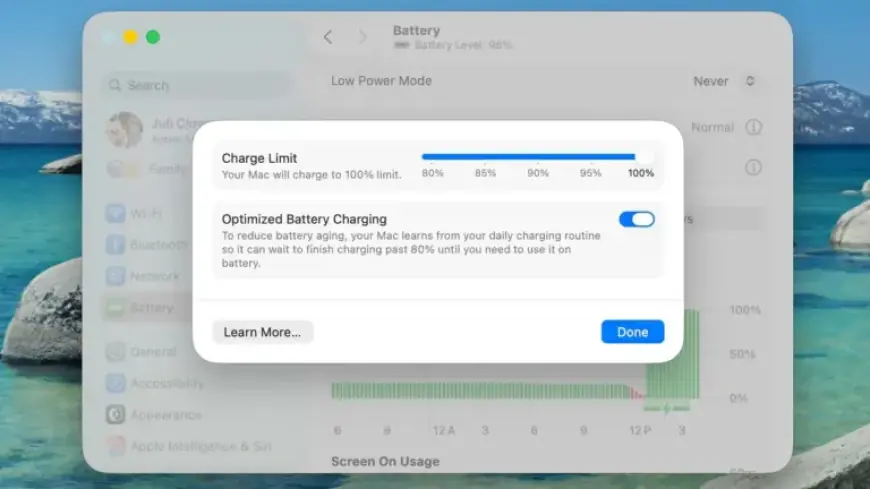
MacBook users often leave their devices plugged in for extended periods, risking long-term battery health. Apple has introduced a new feature to help users manage battery charging. This adjustment can significantly enhance the lifespan of your MacBook’s battery.
Understanding MacBook Battery Life Management
Lithium-ion batteries, like those in MacBooks, degrade at a faster rate when continuously charged to a high level. Keeping a device at or near 100% charge accelerates chemical wear, resulting in diminished battery capacity over time. This is a well-known issue among users of iPhones, particularly newer models.
Charge Limit Feature Now Available for MacBooks
Apple has recently extended its Charge Limit feature to Macs in the latest macOS update, Tahoe 26.4. This feature allows MacBook users to set a maximum charging capacity of 80%, 85%, 90%, 95%, or 100%. This can be beneficial if your MacBook is typically used while plugged into a power outlet.
- Charge Cap Options:
- 80%
- 85%
- 90%
- 95%
- 100%
While a lower cap means less time working away from an outlet, it may lead to improved long-term battery health. Conversely, if you frequently use your MacBook unplugged, selecting a higher cap might be more practical, only slightly reducing wear.
How to Set the Charge Limit on Your MacBook
Setting the Charge Limit on your MacBook is straightforward. Follow these simple steps:
- Click the Apple symbol () in the menu bar.
- Select System Settings….
- Choose Battery from the sidebar.
- Click the “i” icon next to Charging.
- Adjust the Charge Limit slider to your desired percentage (80%, 85%, 90%, 95%, or 100%).
- Click Done to save your settings.
Once set, your MacBook will cease charging after reaching the selected limit. It’s worth noting that, even with this setting, macOS may occasionally charge your device to 100% to ensure accurate battery level readings. Nonetheless, the system will largely adhere to your chosen cap.
By utilizing this new setting, MacBook users can prioritize their device’s battery longevity without sacrificing everyday usability. For more tips on optimizing your MacBook experience, visit Filmogaz.com.